
Editing Portraits in Lightroom Step by Step
Introduction
Portrait editing Lightroom workflows are essential for photographers who want to deliver polished, professional images to clients. Whether you’re a beginner just learning the ropes or a seasoned photographer looking to streamline your editing process, understanding how to efficiently edit portraits in Lightroom can save you time and elevate the quality of your work.
Portrait editing isn’t just about pushing sliders randomly; it’s about enhancing your subject’s natural beauty while maintaining authenticity. Lightroom is one of the most popular tools for portrait retouching because it offers powerful yet user-friendly features that cover everything from basic exposure adjustments to detailed skin tone corrections.
In this guide, I’ll walk you through a practical, step-by-step approach to portrait editing Lightroom style. You’ll learn how to set up your workspace, apply foundational adjustments, refine skin tones, enhance eyes and facial features, and export images ready for client delivery or social media sharing.
We’ll also cover some common challenges photographers face when editing portraits and how to avoid them. Alongside the technical steps, I’ll share tips on managing your editing workflow to keep your photography business running smoothly and profitably.
By the end of this article, you’ll have a clear, actionable framework for Lightroom portrait editing that improves consistency, speed, and the overall quality of your final images.
—
Key Takeaways
– Portrait editing Lightroom techniques focus on enhancing natural features without over-editing.
– Setting a consistent workflow saves time and improves client satisfaction.
– Start with foundational adjustments: exposure, white balance, and tone curve.
– Use targeted tools like the Adjustment Brush and Radial Filter for precise retouching.
– Skin tone correction and subtle skin smoothing are critical for professional portraits.
– Enhancing eyes, lips, and hair adds depth and draws attention to your subject.
– Export settings should be tailored for your delivery platform, whether print or digital.
– Avoid common mistakes like over-sharpening, unnatural skin tones, or ignoring client preferences.
– A well-planned Lightroom workflow integrates seamlessly with your photography business processes.
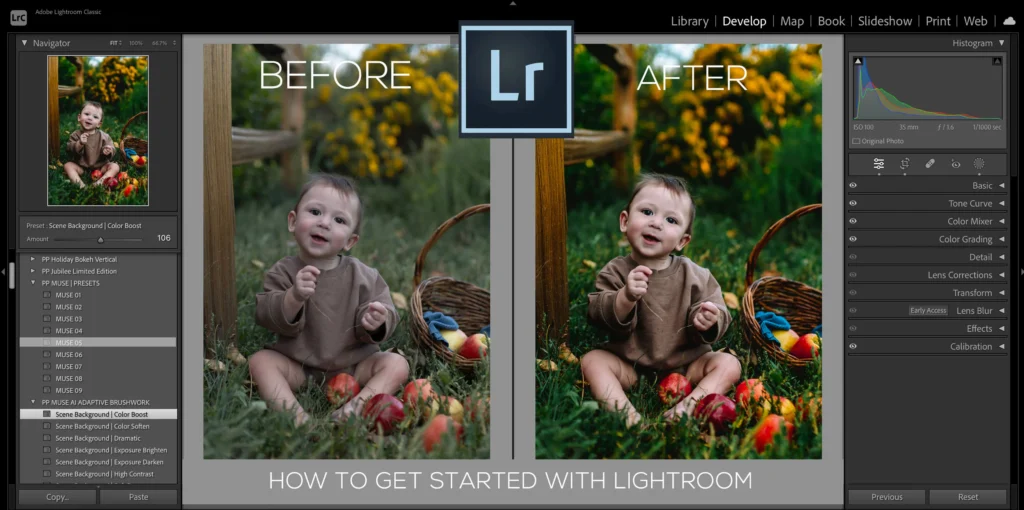
What Is Portrait Editing Lightroom and Why Does It Matter?
Portrait editing Lightroom refers to the process of using Adobe Lightroom to enhance portrait photographs. Lightroom is favored because it offers nondestructive editing, meaning your original files remain untouched. This is crucial for photographers who want to experiment with adjustments without losing the original image data.
Portrait retouching in Lightroom is about balancing technical corrections and artistic enhancement. The goal is to make your subject look their best while preserving the authentic feeling of the moment.
For photography businesses, delivering consistently polished portraits builds client trust and encourages repeat bookings. A streamlined Lightroom portrait editing workflow allows you to edit efficiently, freeing time to focus on shooting and marketing.
Step 1: Organize and Import Your Portraits Efficiently
Before you start editing, organization is key. Import your images with a clear folder and keyword structure. For example, create folders by session date, client name, or shoot type. Use Lightroom’s keyword tagging to mark portraits needing specific edits or retouching.
Organized imports save time searching for files later and help you maintain a professional workflow. During import, apply presets like lens correction or camera profile to start with a clean base.
Step 2: Basic Adjustments — Setting the Foundation
Begin your portrait editing Lightroom process by adjusting the basics:
– White Balance: Use the eyedropper on a neutral area or manually adjust temperature and tint to ensure natural skin tones.
– Exposure: Set the overall brightness. Avoid clipping highlights or shadows to keep details.
– Contrast: Increase slightly to add depth but be careful not to overdo it.
– Highlights and Shadows: Lower highlights to recover skin details and lift shadows to soften dark areas.
– Whites and Blacks: Adjust to fine-tune contrast without losing detail.
– Clarity: Use sparingly; too much clarity can make skin look harsh.
Example: For a warm outdoor portrait, you might increase temperature slightly to enhance golden hour tones while pulling down highlights to retain detail in bright areas like cheeks.
Step 3: Tone Curve and Color Grading for Mood
The tone curve is a powerful tool to refine contrast and mood. For portraits, an S-curve can add subtle contrast that makes skin pop without harshness.
Color grading lets you adjust shadows, midtones, and highlights separately. For example, adding warm tones to midtones enhances skin warmth, while cooler shadows add dimension.
Practical advice: Use the tone curve gently and check your image at 100% zoom to avoid unnatural contrast.
Step 4: Targeted Retouching with Adjustment Brushes and Filters
Lightroom’s Adjustment Brush and Radial Filter allow for localized edits essential in portrait retouching.
– Skin smoothing: Use the Adjustment Brush with reduced clarity and sharpness to gently smooth skin without losing texture.
– Brighten eyes: Increase exposure and clarity within the iris to make eyes stand out.
– Enhance lips: Slightly increase saturation and sharpness to make lips more vibrant.
– Dodge and Burn: Lighten or darken specific areas to sculpt the face, emphasizing cheekbones or jawlines.
Example workflow: Paint over under-eye shadows with a gentle exposure lift, then slightly reduce clarity on the cheeks for soft skin.
Step 5: Correcting Skin Tones and Blemishes
Skin tones can vary widely, so use the HSL panel (Hue, Saturation, Luminance) to fine-tune.
– Adjust Hue to correct color shifts (e.g., reduce redness or yellows).
– Use Saturation to control the intensity of skin colors.
– Modify Luminance to brighten or darken skin areas selectively.
For blemishes, Lightroom’s Spot Removal tool is handy for minor imperfections like acne or dust spots. Use the Heal mode for natural blending.
Pro tip: Avoid over-smoothing or desaturating skin, which can create a plastic look. Maintaining texture is key for professional results.
Step 6: Sharpening and Noise Reduction
Sharpening adds crispness but can amplify noise, especially in high ISO shots.
– Use the Detail panel to apply sharpening carefully.
– Masking slider helps protect smooth areas like skin from sharpening artifacts.
– Noise reduction smooths grain but should be used moderately to avoid losing detail.
Example: For studio portraits shot at low ISO, apply moderate sharpening with high masking. For dimly lit images, balance noise reduction to keep skin textures intact.
Step 7: Final Touches and Exporting for Delivery
Before exporting, review your image at 100% zoom to catch any missed issues.
– Add a subtle vignette to focus attention on the subject.
– Check cropping and composition; straighten if needed.
– Use Lightroom’s export presets tailored for print, web, or social media.
– Deliver high-resolution files to clients while keeping smaller web-friendly versions for online use.
Business tip: Save your final edit as a preset for consistent look across client sessions.
—
Common Mistakes
Portrait editing Lightroom can be tricky, especially for beginners. Avoid these pitfalls to keep your work professional:
1. Over-editing skin: Excessive smoothing or making skin unnaturally flat ruins the portrait’s realism. Always preserve some texture.
2. Ignoring client preferences: Every subject is unique. Some may want natural edits, others more glam. Communicate clearly and adjust your edits accordingly.
3. Skipping calibration and profiles: Not using camera profiles or lens corrections can cause color shifts or distortion.
4. Using too much clarity or texture: Overuse can emphasize wrinkles or pores harshly.
5. Neglecting eye enhancements: Eyes are the focal point in portraits; failing to enhance them subtly can make photos look flat.
6. Inconsistent workflow: Editing each image differently wastes time and reduces client satisfaction. Develop and stick to a workflow.
7. Exporting at the wrong resolution: Delivering low-res images for print or high-res images for social media without resizing can affect quality and loading times.
8. Not backing up edits: Lightroom catalogs and original files should be backed up regularly to prevent data loss.
By being mindful of these mistakes, you’ll produce portraits that impress clients and strengthen your reputation.
—
What to Do Now
Ready to improve your portrait editing Lightroom skills? Here’s a practical action plan to get started:
1. Set up your Lightroom workspace: Customize your panels and import presets for portrait shoots. Organize your image files logically.
2. Practice the step-by-step workflow: Choose a recent portrait session and apply each editing step carefully. Take notes on what works best for your style.
3. Create and save presets: After editing a few images, save your adjustments as presets for faster processing on future portraits.
4. Seek feedback: Share your edits with trusted peers or clients to understand how your retouching is perceived.
5. Explore tutorials: Supplement your learning with video tutorials focused on Lightroom portrait retouching.
6. Refine your business process: Build editing time into your client contracts and pricing to ensure you’re compensated fairly for post-production work.
7. Backup regularly: Implement a backup system for your Lightroom catalogs and original photos to protect your work.
8. Stay consistent: Develop a routine that fits your schedule and business demands. Consistency ensures quality and efficiency.
By following these steps, you’ll establish a reliable portrait editing Lightroom workflow that enhances your images and supports your photography business growth.
—
FAQs
Q1: Can Lightroom alone handle all portrait retouching needs?
Lightroom is excellent for foundational portrait editing—exposure, color correction, skin tone adjustment, and minor retouching like spot removal and skin smoothing. However, for advanced skin retouching (such as frequency separation or detailed blemish removal), many photographers use Photoshop alongside Lightroom. Lightroom remains the workhorse for batch processing and initial edits that save time.
Q2: How do I keep skin looking natural when editing portraits in Lightroom?
Maintain texture by avoiding heavy clarity or sharpness reduction on the skin. Use the Adjustment Brush with subtle settings for localized smoothing. Also, adjust HSL sliders gently to correct skin tones without oversaturating or desaturating. Always zoom in to check that the skin retains pores and natural variations.
Q3: What are the best export settings for delivering portraits to clients?
Export high-resolution JPEGs at 300 dpi for print deliverables, with sRGB color space for web use. Adjust dimensions based on client needs—typically 3000 to 4000 pixels on the longest edge for online portfolios. Include watermarking if you want to protect your images online, but provide watermark-free files for final delivery.
Q4: How can I speed up my Lightroom portrait editing workflow?
Use presets for recurring adjustments like lens corrections and color grading. Apply batch edits to similar images from the same session. Organize your files and create a consistent editing sequence from basic corrections to final tweaks. Keyboard shortcuts and customized panels also enhance speed.
Q5: What Lightroom tools are best for enhancing eyes in portraits?
The Adjustment Brush is ideal for brightening and sharpening eyes. Increase exposure slightly, boost clarity and sharpness within the iris, and enhance saturation to make eyes vivid. Use the Radial Filter to subtly highlight the eye area and draw attention naturally.
—
Conclusion
Mastering portrait editing Lightroom techniques is a valuable skill that elevates both your photography quality and business professionalism. By following a structured, step-by-step workflow—from import organization, foundational adjustments, targeted retouching, to final export—you’ll produce stunning portraits that satisfy clients and showcase your artistic vision.
Remember, portrait retouching is about enhancing natural beauty, not creating unrealistic perfection. Lightroom provides powerful tools to help you achieve this balance while maintaining an efficient workflow. Avoid common mistakes like over-editing skin or inconsistent processing, and instead focus on consistent results that build your brand’s reputation.
Implementing this Lightroom portrait editing framework not only improves your post-production speed but also frees up time to focus on growing your photography business. Regular practice, client communication, and workflow refinement are key to long-term success.
Start applying these techniques today and watch your portraits—and your photography business—reach new heights. With patience and dedication, your Lightroom edits will become a defining part of your professional photography style.

