
Lightroom vs Photoshop for Photographers: Which Editing Software Should You Choose?
Introduction
Choosing the right editing software is a fundamental decision every photographer faces. Whether you’re just starting out, building your photography business, or looking to refine your editing workflow, understanding the differences between Lightroom vs Photoshop is essential. These two powerhouse tools from Adobe dominate the photography editing landscape, but they serve different purposes and excel in different areas.
Lightroom and Photoshop are often mentioned together, but they are not interchangeable. Lightroom is a comprehensive photo management and editing tool designed for batch processing and organizing your entire library. Photoshop, on the other hand, is a pixel-level editor that gives you unparalleled control over detailed retouching, compositing, and creative manipulation.
In this article, we’ll provide a practical, no-nonsense comparison of Lightroom vs Photoshop tailored specifically for photographers. We’ll break down their core features, explain when to use each program, and offer step-by-step advice on how to integrate them into your workflow. By the end, you’ll have a clear understanding of how each software fits into your editing process and business, helping you make informed choices that save time, improve your images, and delight your clients.
Whether you’re a beginner exploring your options or a working professional optimizing your workflow, this guide will help you maximize your editing efficiency and deliver top-quality results.
—
Key Takeaways
– Lightroom is best for photo organization, batch editing, and non-destructive adjustments; it’s ideal for processing large numbers of images efficiently.
– Photoshop excels at detailed retouching, complex composites, and pixel-level edits that Lightroom can’t handle.
– Most professional photographers use both Lightroom and Photoshop in tandem, using Lightroom for initial edits and Photoshop for advanced corrections.
– Understanding your client needs and typical projects helps determine which software to prioritize for your photography business.
– Mastering Lightroom’s catalog system and presets can dramatically speed up your workflow without sacrificing quality.
– Photoshop’s layers, masks, and retouching tools allow for creative freedom but require more time and skill.
– Avoid common mistakes like over-editing or disorganized file management by following structured workflows and backup practices.
– Developing a practical editing routine that leverages the strengths of both programs can improve your productivity and final image quality.
—
Lightroom vs Photoshop: What Is the Core Difference?
Photographers often ask: “What’s the real difference between Lightroom vs Photoshop?” Understanding their core purpose is the starting point.
Lightroom is primarily a photo management and editing application designed for photographers to organize, edit, and export large volumes of images efficiently. It uses a catalog system to track your photos without altering the original files. Lightroom edits are non-destructive, meaning the original image remains untouched, and you can revert or change edits anytime. This makes Lightroom excellent for basic to intermediate adjustments like exposure, color correction, cropping, and applying presets.
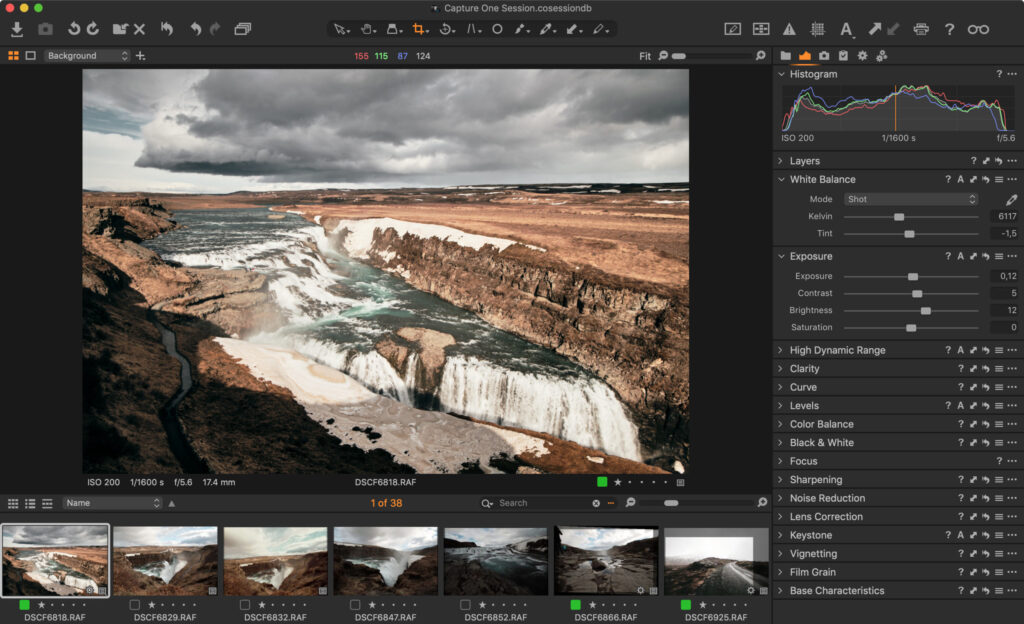
Photoshop, on the other hand, is a pixel-level editor used for detailed image manipulation. It works with layers, masks, and complex tools for retouching, compositing, text, and graphic design. Photoshop edits are often destructive unless you work with smart objects or layers, requiring more careful file management. It is the go-to tool for advanced corrections like removing objects, retouching skin, creating composites, or any creative edits beyond basic color and exposure.
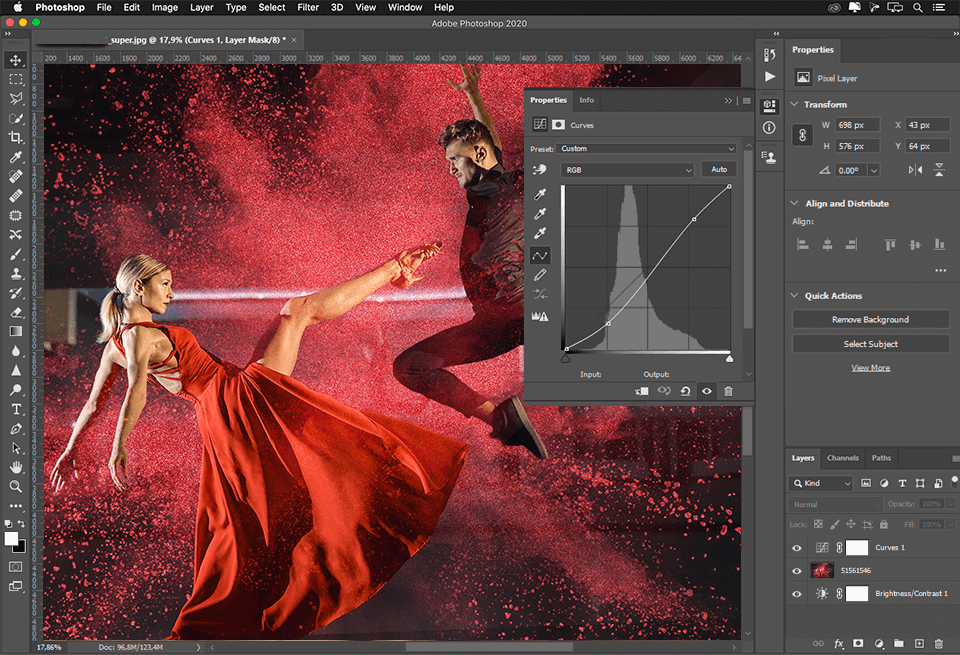
Practical Example: Editing a Wedding Gallery
Imagine you just finished shooting a wedding with 800 photos. Lightroom allows you to import all images, organize them by client and event, apply batch adjustments for exposure and color, and flag the best shots quickly. You can export a consistent set of images with one click.
However, when you encounter a portrait where a stray hair needs removal, or you want to create a beautiful double exposure composite for the couple, that’s when you open Photoshop. You’ll use Photoshop’s retouching tools to perfect the image before final export.
—
How to Choose Between Lightroom and Photoshop for Your Photography Business
Selecting the right software depends on your specific photography business needs and workflow. Here are some questions to ask yourself:
– What type of photography do I mainly shoot?
Landscape, portrait, event, commercial, or fine art? For high-volume shoots like events or weddings, Lightroom’s batch editing shines. For detailed retouching needs like fashion or product photography, Photoshop is crucial.
– How many images do I typically edit per session?
If you work with hundreds of photos, Lightroom’s catalog and batch processing capabilities save hours. For single-image perfection or creative composites, Photoshop is better.
– What is my editing skill level?
Lightroom has a gentler learning curve, making it beginner-friendly. Photoshop requires more technical knowledge but offers infinite creative possibilities.
– Do I want a streamlined workflow or deep creative control?
Lightroom streamlines your workflow with presets and organization tools. Photoshop offers deeper control but at the cost of time and complexity.
– What is my budget?
Adobe offers Lightroom and Photoshop separately or as a bundle via Creative Cloud. Consider which tool provides the most value for your business needs.
—
Step-by-Step Workflow: Using Lightroom and Photoshop Together
Many photographers find the best results by combining Lightroom and Photoshop in a seamless workflow. Here’s a practical framework you can follow:
1. Import and Organize in Lightroom
Import your RAW files into Lightroom’s catalog. Use folders, collections, and keywords to organize images by shoot, client, or theme.
2. Cull and Flag Your Best Images
Use Lightroom’s rating system (flags, stars, color labels) to select the top photos. This helps focus your editing on client favorites.
3. Apply Global Adjustments in Lightroom
Adjust exposure, white balance, contrast, and color globally using Lightroom’s Develop module. Use presets to speed this up.
4. Export to Photoshop for Detailed Editing
For images needing advanced retouching or compositing, right-click and choose “Edit In Photoshop.” Photoshop opens a layered TIFF or PSD file.
5. Perform Advanced Edits in Photoshop
Use tools like healing brush, clone stamp, layers, and masks for skin retouching, object removal, or creative composites.
6. Save and Return to Lightroom
Save the Photoshop file. The edited image automatically appears back in Lightroom alongside the original.
7. Finalize and Export in Lightroom
Apply any final adjustments, then export your images in desired formats for client delivery or portfolio use.
This workflow capitalizes on Lightroom’s speed and organization with Photoshop’s precision and creativity.
—
Editing Comparison: Lightroom vs Photoshop Features Photographers Need to Know
When comparing Lightroom vs Photoshop, it’s helpful to look at specific features photographers rely on:
| Feature | Lightroom | Photoshop |
|---|---|---|
| Photo Organization | Excellent catalog system with keywording, flags, and collections | Basic file browsing only |
| Batch Editing | Strong batch processing with presets and sync | Limited batch capabilities |
| Non-Destructive Editing | Fully non-destructive workflow | Destructive unless using Smart Objects |
| RAW Processing | Built-in RAW editor with presets | Requires Adobe Camera Raw |
| Exposure & Color Correction | Simple sliders and presets | Advanced control using layers and adjustments |
| Retouching Tools | Basic (spot removal, healing) | Advanced (healing, cloning, frequency separation) |
| Layers & Masks | No true layers, limited masking tools | Full layers and masking system |
| Creative Compositing | Not supported | Extensive compositing capabilities |
| Text & Graphics | Not available | Full text and vector tools |
| Export Options | Presets with batch export | Export in multiple formats (PSD, PNG, JPEG, TIFF) |
Practical Scenario: Portrait Retouching
If you shoot portraits, Lightroom’s spot removal tool is great for minor blemishes. But for smoothing skin tones, removing distractions, and enhancing eyes, Photoshop’s layers and retouching brushes provide superior control. You might start in Lightroom to set the overall tone, then move to Photoshop for detailed work.
—
How Lightroom and Photoshop Impact Your Photography Business
Choosing the right editing software affects not just your final images but also your business efficiency, client satisfaction, and profitability.
Time Management and Efficiency
Lightroom’s ability to organize and batch edit means you can process large shoots faster, meet deadlines, and spend more time shooting or marketing your business. Photoshop’s detailed edits take longer but can justify premium pricing on high-end retouching jobs.
Client Expectations and Quality
Clients expect flawless images but also timely delivery. Using Lightroom for initial edits and Photoshop for complex fixes ensures you balance quality with speed.
Pricing Your Services
When you include Photoshop retouching, you should factor in additional editing time into your pricing. Offering tiers of editing—basic Lightroom edits vs. premium Photoshop retouching—helps clients choose services that fit their budget and needs.
Marketing Your Skills
Showcasing your ability to deliver both quick turnarounds and high-end retouching can differentiate you in competitive markets. Mentioning expertise in both Lightroom and Photoshop builds client confidence.
—
Common Mistakes Photographers Make When Choosing Editing Software
Even experienced photographers sometimes stumble when deciding between Lightroom vs Photoshop. Avoid these pitfalls:
– Relying on One Software Exclusively
Many photographers try to use only Lightroom or only Photoshop. This limits their editing capabilities and workflow efficiency. Learning to use both strategically is key.
– Ignoring File Organization
Lightroom’s catalog is powerful but only if you use it effectively. Skipping keywording, flagging, or consistent folder structures leads to lost images and wasted time.
– Over-Editing in Photoshop
Photoshop’s power can tempt you into over-retouching, which makes images look unnatural. Use subtlety and remember the client’s expectations.
– Skipping Backup and Version Control
Photoshop’s destructive editing means you must save versions carefully. Lightroom’s non-destructive edits help, but backing up your catalog regularly is essential.
– Not Investing Time to Learn Both
Many photographers focus on learning Lightroom only or Photoshop only. Investing time to gain proficiency in both programs pays off in flexibility and quality.
—
What to Do Now: Building Your Lightroom and Photoshop Workflow
Ready to improve your editing workflow? Follow this action plan to integrate Lightroom and Photoshop effectively:
1. Assess Your Current Workflow
Write down your current editing process. How many images do you edit? What edits do you perform? Where do you spend the most time?
2. Learn Lightroom’s Organizational Tools
Spend time mastering Lightroom’s import, keywording, rating, and collection features. Organize your current library for easier future access.
3. Practice Basic Edits in Lightroom
Experiment with exposure, color correction, cropping, and presets. Try batch editing to speed up your process.
4. Explore Photoshop Retouching Tutorials
Learn key Photoshop tools like layers, masks, clone stamp, healing brush, and adjustment layers through online tutorials or courses.
5. Create a Hybrid Workflow
Start processing images in Lightroom, then move to Photoshop only when necessary. Keep track of which images require advanced edits.
6. Set Up Presets and Actions
Create Lightroom presets for your common adjustments and Photoshop actions for routine retouching to save time.
7. Back Up Regularly
Implement a backup system for Lightroom catalogs and Photoshop files to avoid data loss.
8. Communicate with Clients
Explain your editing process and timelines clearly. Offer editing packages that reflect Lightroom-only vs. Lightroom + Photoshop editing.
9. Evaluate and Refine
After each shoot, review what worked and what slowed you down. Adjust your workflow to be more efficient and client-focused.
—
FAQs
1. Can I use Lightroom and Photoshop independently, or do I need both?
You can use either program independently depending on your editing needs. Lightroom is sufficient for basic to intermediate edits and batch processing, while Photoshop is necessary for detailed retouching and creative projects. However, most professional photographers benefit from using both in tandem to maximize efficiency and creative control.
2. Is Lightroom easier to learn than Photoshop for beginners?
Yes, Lightroom has a more beginner-friendly interface focused on photo organization and basic editing sliders. Photoshop has a steeper learning curve due to its complex tools like layers, masks, and selection methods. Starting with Lightroom is recommended for beginners before advancing to Photoshop.
3. How does non-destructive editing in Lightroom work?
Lightroom stores all edits as metadata instructions in its catalog without altering the original image file. This means you can change or remove edits anytime without damaging your photos. Photoshop edits can be destructive unless you work with layers and smart objects carefully.
4. Can I batch edit images in Photoshop like I do in Lightroom?
Photoshop’s batch editing capabilities are limited compared to Lightroom. While Photoshop has actions and scripts for automation, Lightroom’s catalog system and presets are designed for fast, consistent batch processing of hundreds of images simultaneously.
5. Which software is better for commercial photography clients?
Both are important. Lightroom is essential for organizing and quickly delivering large volumes of images, while Photoshop is crucial for high-end retouching required in commercial work. Offering both options allows you to meet varied client expectations and justify premium pricing.
—
Conclusion
Understanding the strengths and differences between Lightroom vs Photoshop is vital for photographers looking to streamline their editing workflow and deliver professional-quality images. Lightroom excels at managing and editing large numbers of photos quickly and non-destructively, making it indispensable for event, wedding, and commercial photographers who handle bulk editing. Photoshop provides unmatched control for detailed retouching, composites, and creative manipulations that elevate your images beyond basic adjustments.
Rather than viewing Lightroom and Photoshop as competitors, think of them as complementary tools that, when used together, maximize your creative potential and business efficiency. Implementing a workflow that starts with Lightroom’s powerful organization and batch editing, then moves to Photoshop for specialized corrections, helps you save time, maintain image quality, and meet client expectations consistently.
As your photography business grows, investing time to master both editing software not only improves your technical skills but also enhances your marketability and ability to offer diverse editing services. Start by mastering the fundamentals of Lightroom, then gradually integrate Photoshop into your process for advanced editing needs.
Remember, the right software choice aligns with your shooting style, client demands, and personal workflow preferences. With practical knowledge of Lightroom vs Photoshop and a well-planned workflow, you’ll be equipped to create stunning images efficiently and confidently—key ingredients for a thriving photography business.
—

